> For the complete documentation index, see [llms.txt](https://docs.catchify.sa/llms.txt). Markdown versions of documentation pages are available by appending `.md` to page URLs; this page is available as [Markdown](https://docs.catchify.sa/catchify-platform-documentation/getting-started/logging-in.md).
# Logging In
Your Catchify client portal is available at [portal.catchify.sa](https://portal.catchify.sa). You can access it from any modern web browser on your computer, tablet, or phone.
## How to Log In
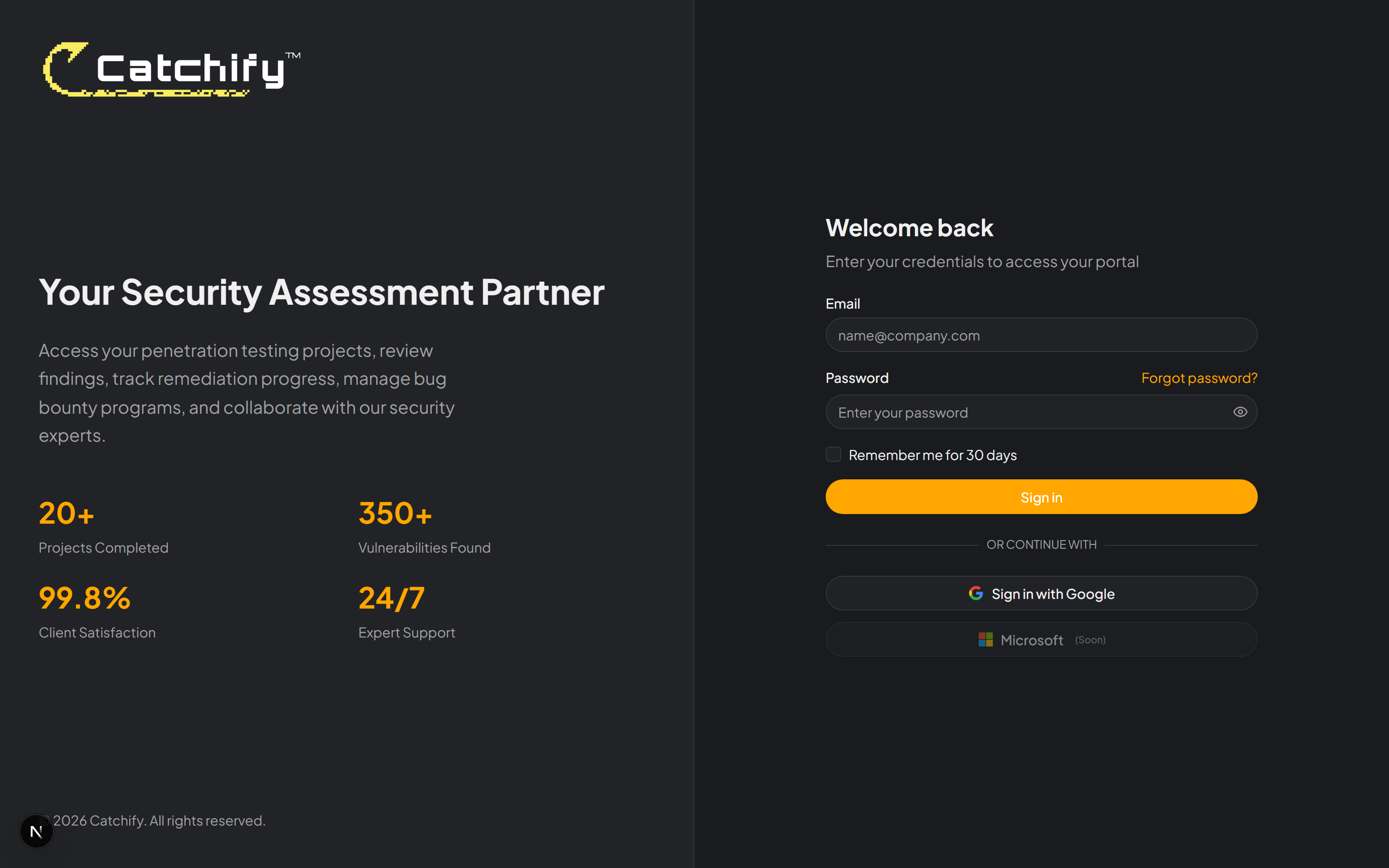
1. Open your browser and go to [portal.catchify.sa](https://portal.catchify.sa)
2. Enter your **email address**
3. Enter your **password**
4. Click **Sign In**
The login page at portal.catchify.sa
If you have two-factor authentication enabled (and we recommend you do), you will be prompted to enter a verification code from your authenticator app after entering your password.
## Staying Signed In
Your session will remain active while you are using the portal. For security, you will be automatically signed out after a period of inactivity. Simply log in again when you return.
## Forgot Your Password?
If you have forgotten your password, you can reset it in a few steps:
1. On the login page, click **Forgot Password?**
2. Enter the email address associated with your account
3. Click **Send Reset Link**
4. Check your email for a password reset link
5. Click the link and enter your new password
6. Log in with your new password
{% hint style="warning" %}
Password reset links expire after 1 hour. If yours has expired, simply request a new one from the login page.
{% endhint %}
## Browser Recommendations
Catchify works best on the latest versions of:
| Browser | Minimum Version |
| --------------- | --------------- |
| Google Chrome | 90+ |
| Mozilla Firefox | 90+ |
| Microsoft Edge | 90+ |
| Safari | 14+ |
{% hint style="info" %}
For the best experience, we recommend using Google Chrome or Microsoft Edge with JavaScript enabled.
{% endhint %}
## Having Trouble Logging In?
If you are unable to log in, here are a few things to check:
* **Incorrect password** -- Make sure Caps Lock is not turned on. Passwords are case-sensitive.
* **Account not verified** -- If you have not verified your email address, check your inbox for the verification email.
* **Account locked** -- After multiple failed login attempts, your account may be temporarily locked for security. Wait a few minutes and try again.
* **Still stuck?** -- Contact us at and we will help you regain access.
---
# Agent Instructions
This documentation is published with GitBook. GitBook is the documentation platform designed so that both humans and AI agents can read, navigate, and reason over technical content effectively. Learn more at gitbook.com.
## Querying This Documentation
If you need additional information that is not directly available in this page, you can query the documentation dynamically by asking a question.
Perform an HTTP GET request on the current page URL with the `ask` query parameter, and the optional `goal` query parameter:
```
GET https://docs.catchify.sa/catchify-platform-documentation/getting-started/logging-in.md?ask=&goal=
```
`ask` is the immediate question: it should be specific, self-contained, and written in natural language.
`goal` is optional and describes the broader end goal you are ultimately trying to accomplish on behalf of the user. GitBook uses it to tailor the answer towards what is most useful for that goal.
The response will contain a direct answer to the question and relevant excerpts and sources from the documentation.
Use this mechanism when the answer is not explicitly present in the current page, you need clarification or additional context, or you want to retrieve related documentation sections.