# Jira Integration

Connect Catchify to your Jira workspace so security findings are automatically turned into Jira tickets. This keeps your development team in their familiar workflow while ensuring security issues are tracked and resolved alongside regular development tasks.

## What the Jira Integration Does

When a new finding is discovered in Catchify, the integration can automatically create a corresponding Jira issue in your project. The Jira ticket includes:

* The finding title as the issue summary
* The severity level mapped to your Jira priority scheme
* The full description, impact, and remediation guidance
* A link back to the finding in Catchify for additional details

When a Jira ticket is updated (for example, moved to "Done"), the status can sync back to Catchify -- keeping both systems in alignment.

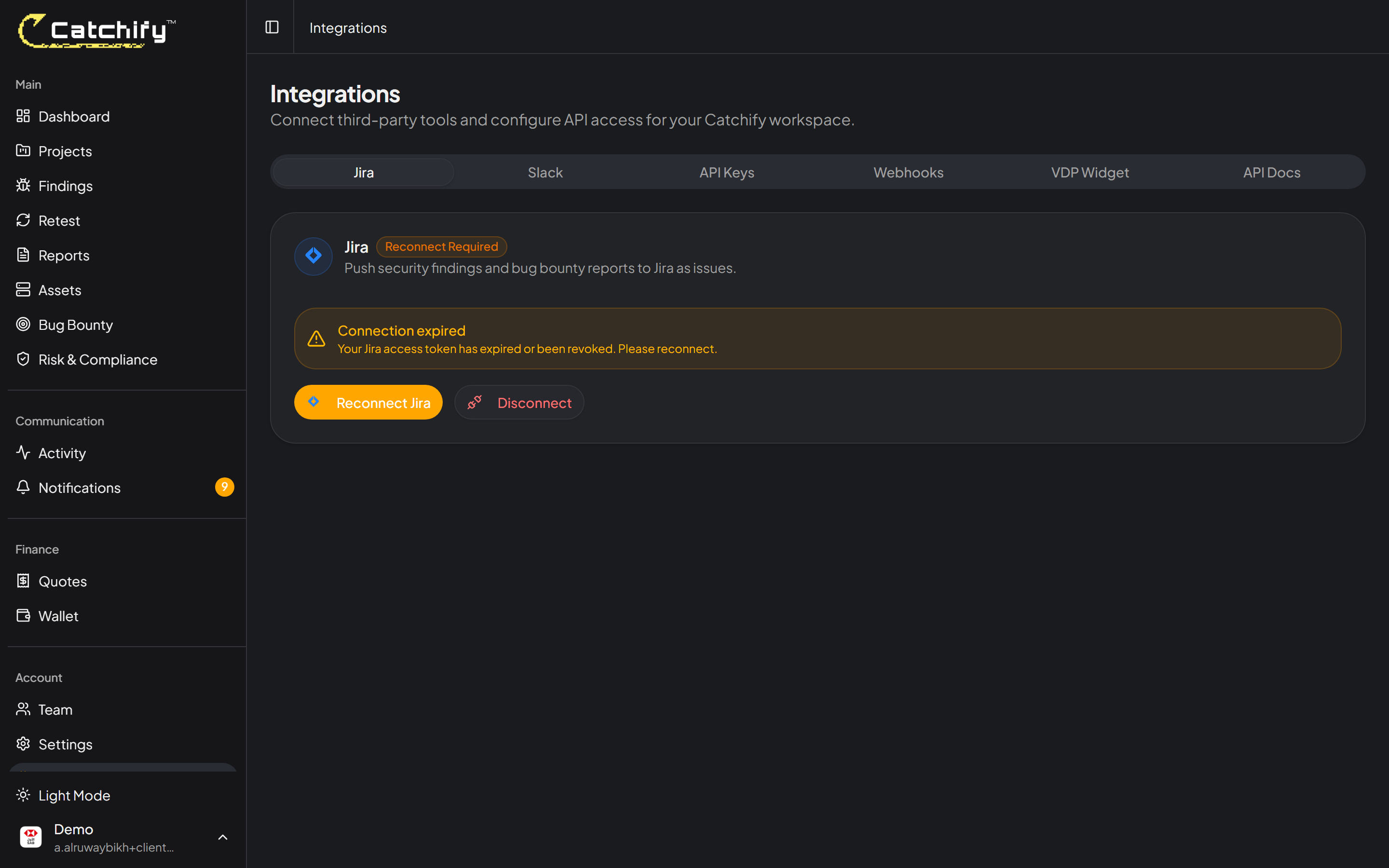
<figure><img src="https://1934022057-files.gitbook.io/~/files/v0/b/gitbook-x-prod.appspot.com/o/spaces%2FSEbSDqwQ0dOF3yycuHLw%2Fuploads%2Fgit-blob-9e4e0d1bf53f6267d13bff58f533223cee60cbfb%2Fintegrations-jira.png?alt=media" alt="Jira integration tab in the Catchify portal"><figcaption><p>Findings in Catchify automatically become Jira tickets for your development team</p></figcaption></figure>

## Setting Up the Integration

### Step 1: Open Integration Settings

1. Navigate to **Integrations** in the main menu
2. Find the **Jira** card and click **Connect**

### Step 2: Connect Your Jira Instance

1. Enter your Jira workspace URL (for example, yourcompany.atlassian.net)
2. Authorize Catchify to access your Jira workspace
3. Select the Jira project where findings should be created

<figure><img src="https://1934022057-files.gitbook.io/~/files/v0/b/gitbook-x-prod.appspot.com/o/spaces%2FSEbSDqwQ0dOF3yycuHLw%2Fuploads%2Fgit-blob-9e4e0d1bf53f6267d13bff58f533223cee60cbfb%2Fintegrations-jira.png?alt=media" alt="Jira connection form showing workspace URL and project selection"><figcaption><p>Connect your Jira workspace and choose your project</p></figcaption></figure>

### Step 3: Configure Field Mapping

Map Catchify fields to your Jira fields:

| Catchify Field | Jira Field           | Notes                                                 |
| -------------- | -------------------- | ----------------------------------------------------- |
| Finding title  | Summary              | The issue title                                       |
| Severity       | Priority             | Map Critical/High/Medium/Low to your Jira priorities  |
| Description    | Description          | Full finding details including impact and remediation |
| Status         | Status               | Map Catchify statuses to your Jira workflow           |
| Project        | Labels or Components | Optional: tag tickets by Catchify project             |

<figure><img src="https://1934022057-files.gitbook.io/~/files/v0/b/gitbook-x-prod.appspot.com/o/spaces%2FSEbSDqwQ0dOF3yycuHLw%2Fuploads%2Fgit-blob-9e4e0d1bf53f6267d13bff58f533223cee60cbfb%2Fintegrations-jira.png?alt=media" alt="Field mapping configuration showing Catchify fields mapped to Jira fields"><figcaption><p>Map Catchify fields to your Jira workflow</p></figcaption></figure>

### Step 4: Choose Sync Options

Configure how the integration behaves:

* **Auto-create tickets** -- Automatically create a Jira ticket for every new finding, or only for specific severity levels
* **Status sync** -- Enable two-way status sync so changes in Jira are reflected in Catchify and vice versa
* **Severity filter** -- Only create tickets for findings above a certain severity threshold (for example, only Medium and above)

{% hint style="info" %}
We recommend starting with auto-create enabled for High and Critical findings only, and then expanding to Medium and Low once your team is comfortable with the workflow.
{% endhint %}

## How Status Sync Works

When two-way sync is enabled:

| Action in Catchify           | Result in Jira                                              |
| ---------------------------- | ----------------------------------------------------------- |
| Finding marked as Open       | Jira ticket created (if auto-create is on)                  |
| Finding moved to In Progress | Jira ticket status updated to your "In Progress" equivalent |
| Finding moved to Fixed       | Jira ticket status updated to your "Done" equivalent        |

| Action in Jira              | Result in Catchify                    |
| --------------------------- | ------------------------------------- |
| Ticket moved to In Progress | Finding status updated to In Progress |
| Ticket moved to Done        | Finding status updated to Fixed       |

## Managing the Integration

After setup, you can:

* **Edit configuration** -- Change field mappings, sync options, or the target Jira project
* **View sync history** -- See a log of all tickets created and status updates synced
* **Pause sync** -- Temporarily stop syncing without disconnecting the integration
* **Disconnect** -- Remove the Jira integration entirely

{% hint style="warning" %}
If your Jira project workflow changes (for example, new status names or fields), you may need to update the field mapping in Catchify to keep the sync working correctly.
{% endhint %}

## Tips for a Smooth Integration

* **Use a dedicated Jira project** -- Consider creating a "Security Findings" project in Jira specifically for Catchify tickets, so they do not get lost among other work
* **Set up Jira notifications** -- Configure Jira to notify the right developers when new security tickets are created
* **Track resolution time** -- Use Jira's built-in reporting to track how quickly your team resolves security findings
* **Include in sprint planning** -- Make security findings part of your regular sprint planning to ensure they get addressed consistently

{% hint style="success" %}
Teams using the Jira integration resolve findings faster because developers receive tickets in the tool they already use every day. No context-switching required.
{% endhint %}
