> For the complete documentation index, see [llms.txt](https://docs.catchify.sa/llms.txt). Markdown versions of documentation pages are available by appending `.md` to page URLs; this page is available as [Markdown](https://docs.catchify.sa/catchify-platform-documentation/integrations/slack.md).
# Slack Notifications
Connect Catchify to your Slack workspace so your team receives real-time notifications about new findings, status changes, and other important events -- right where you already communicate. No more checking the portal to see if something new has come in.
## Setting Up Slack Integration
Connecting Slack takes just a few steps:
### Step 1: Open Integration Settings
1. Navigate to **Integrations** in the main menu
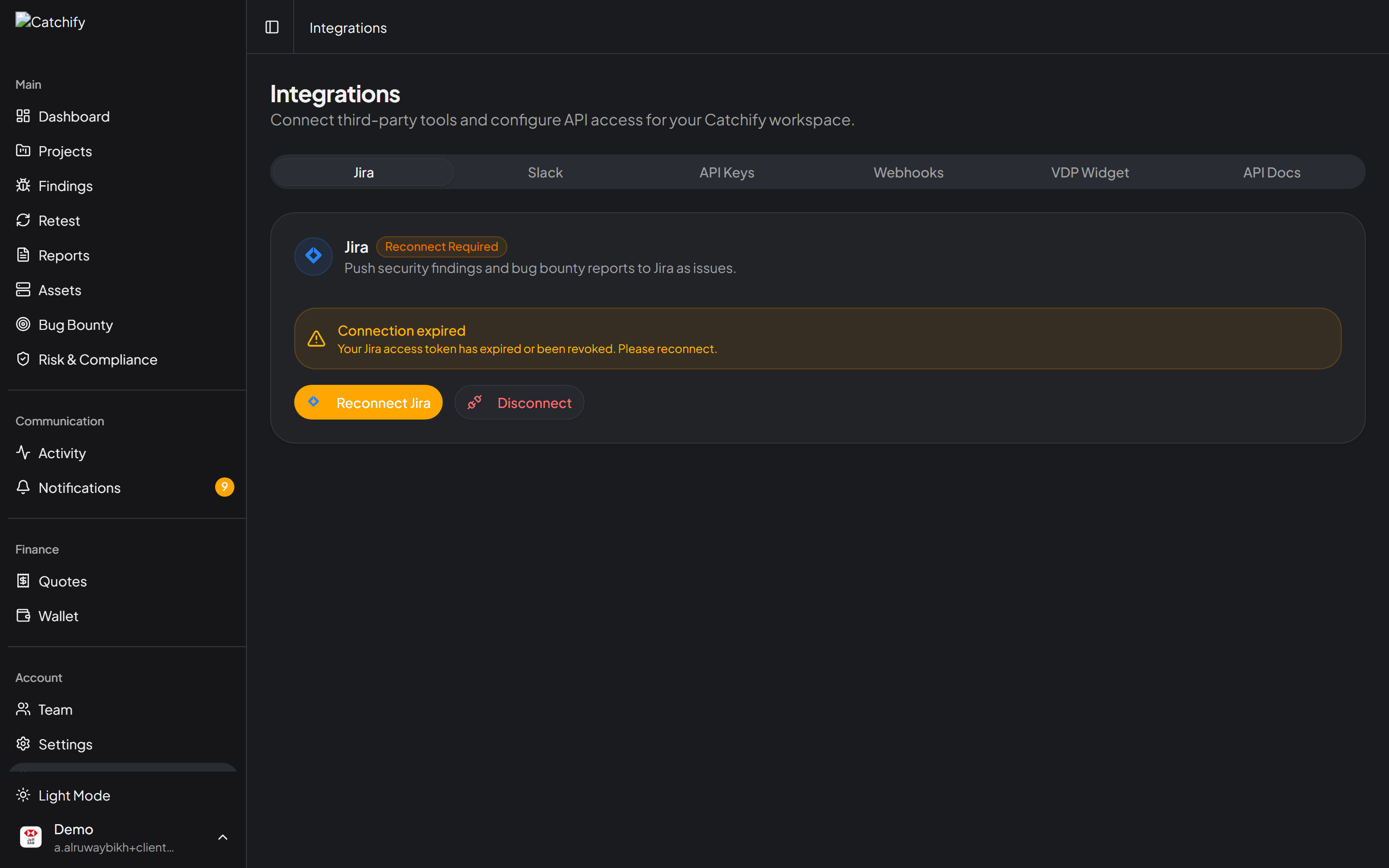
2. Find the **Slack** card and click **Connect**
Find Slack on the Integrations page and click Connect
### Step 2: Authorize Catchify
1. You will be redirected to Slack's authorization page
2. Select the Slack workspace you want to connect
3. Review the permissions Catchify is requesting
4. Click **Allow** to authorize the connection
{% hint style="info" %}
You will need to be a Slack workspace administrator or have permission to install apps in your Slack workspace.
{% endhint %}
### Step 3: Choose Your Channel and Events
After authorization, you will be taken back to Catchify to configure your preferences:
1. **Select a channel** -- Choose which Slack channel should receive Catchify notifications (for example, #security-alerts or #catchify-findings)
2. **Choose events** -- Select which types of events you want to be notified about
Choose your channel and select which events to receive
## Available Notification Events
You can choose to receive Slack notifications for any combination of the following events:
| Event | What You Will See |
| -------------------------- | ------------------------------------------------------------------- |
| **New Finding** | A message when a new vulnerability is discovered |
| **Finding Status Changed** | Updates when a finding moves to a new status |
| **New Bug Bounty Report** | A message when a researcher submits a new report |
| **Report Status Changed** | Updates when a bug bounty report is triaged, confirmed, or resolved |
| **Retest Completed** | Notification when a retest is finished with the pass/fail result |
| **New Comment** | A message when someone adds a comment to a finding |
| **Project Started** | Notification when a new pentest engagement begins |
| **Project Completed** | Notification when a pentest engagement is finished |
| **Invoice Created** | A message when a new invoice is generated |
## What Notifications Look Like
Catchify notifications in Slack are formatted as rich messages that include:
* The event type (for example, "New Critical Finding")
* The name of the affected project or program
* Key details such as finding title and severity
* A direct link to view the full details in the Catchify portal
## Managing Your Slack Integration
After setup, you can manage your Slack integration at any time:
* **Change the channel** -- Update which channel receives notifications
* **Update events** -- Add or remove event types
* **Test the connection** -- Send a test notification to verify everything is working
* **Disconnect** -- Remove the Slack integration entirely
To make changes, go to **Integrations** in the main menu and click **Configure** on the Slack card.
{% hint style="warning" %}
If you change the Slack channel and the bot has not been added to the new channel, notifications will fail silently. Make sure to invite the Catchify bot to any new channel you select.
{% endhint %}
## Tips for Getting the Most from Slack Notifications
* **Use a dedicated channel** -- Create a channel specifically for Catchify notifications (like #catchify-alerts) to keep security updates organized
* **Pin important notifications** -- When a critical finding comes in, pin it in the channel so your team does not miss it
* **Set channel notification preferences** -- Configure Slack to send push notifications for critical and high findings while keeping lower-severity updates as regular messages
* **Involve the right people** -- Add all relevant team members to your Catchify Slack channel so everyone stays informed
{% hint style="success" %}
Teams that connect Slack to Catchify respond to critical findings significantly faster. Real-time notifications mean your team can start working on fixes within minutes of discovery.
{% endhint %}
---
# Agent Instructions
This documentation is published with GitBook. GitBook is the documentation platform designed so that both humans and AI agents can read, navigate, and reason over technical content effectively. Learn more at gitbook.com.
## Querying This Documentation
If you need additional information that is not directly available in this page, you can query the documentation dynamically by asking a question.
Perform an HTTP GET request on the current page URL with the `ask` query parameter, and the optional `goal` query parameter:
```
GET https://docs.catchify.sa/catchify-platform-documentation/integrations/slack.md?ask=&goal=
```
`ask` is the immediate question: it should be specific, self-contained, and written in natural language.
`goal` is optional and describes the broader end goal you are ultimately trying to accomplish on behalf of the user. GitBook uses it to tailor the answer towards what is most useful for that goal.
The response will contain a direct answer to the question and relevant excerpts and sources from the documentation.
Use this mechanism when the answer is not explicitly present in the current page, you need clarification or additional context, or you want to retrieve related documentation sections.