> For the complete documentation index, see [llms.txt](https://docs.catchify.sa/llms.txt). Markdown versions of documentation pages are available by appending `.md` to page URLs; this page is available as [Markdown](https://docs.catchify.sa/catchify-platform-documentation/team-management/inviting-members.md).
# Inviting Team Members
Catchify is designed for teams. You can invite colleagues from across your organization -- security managers, developers, IT directors, project managers -- so everyone who needs visibility into your security testing program has access.
## How to Invite a Team Member
1. Navigate to **Team** in the main menu
2. Click **Invite Member**
3. Enter the team member's details:
* **Email address** -- The email they will use to log in
* **Full name** -- Their first and last name
* **Role** -- Select the appropriate role (see [Roles & Permissions](/catchify-platform-documentation/team-management/roles-and-permissions.md) for details)
4. Click **Send Invitation**
Invite a colleague by entering their email and selecting their role
The team member will receive an invitation email with a link to set up their account. They will need to:
* Click the link in the email
* Create a password
* Verify their email address
* Log in to the portal
{% hint style="info" %}
Invitation links expire after 7 days. If a team member does not activate their account in time, you can resend the invitation from the Team page.
{% endhint %}
## Managing Your Team
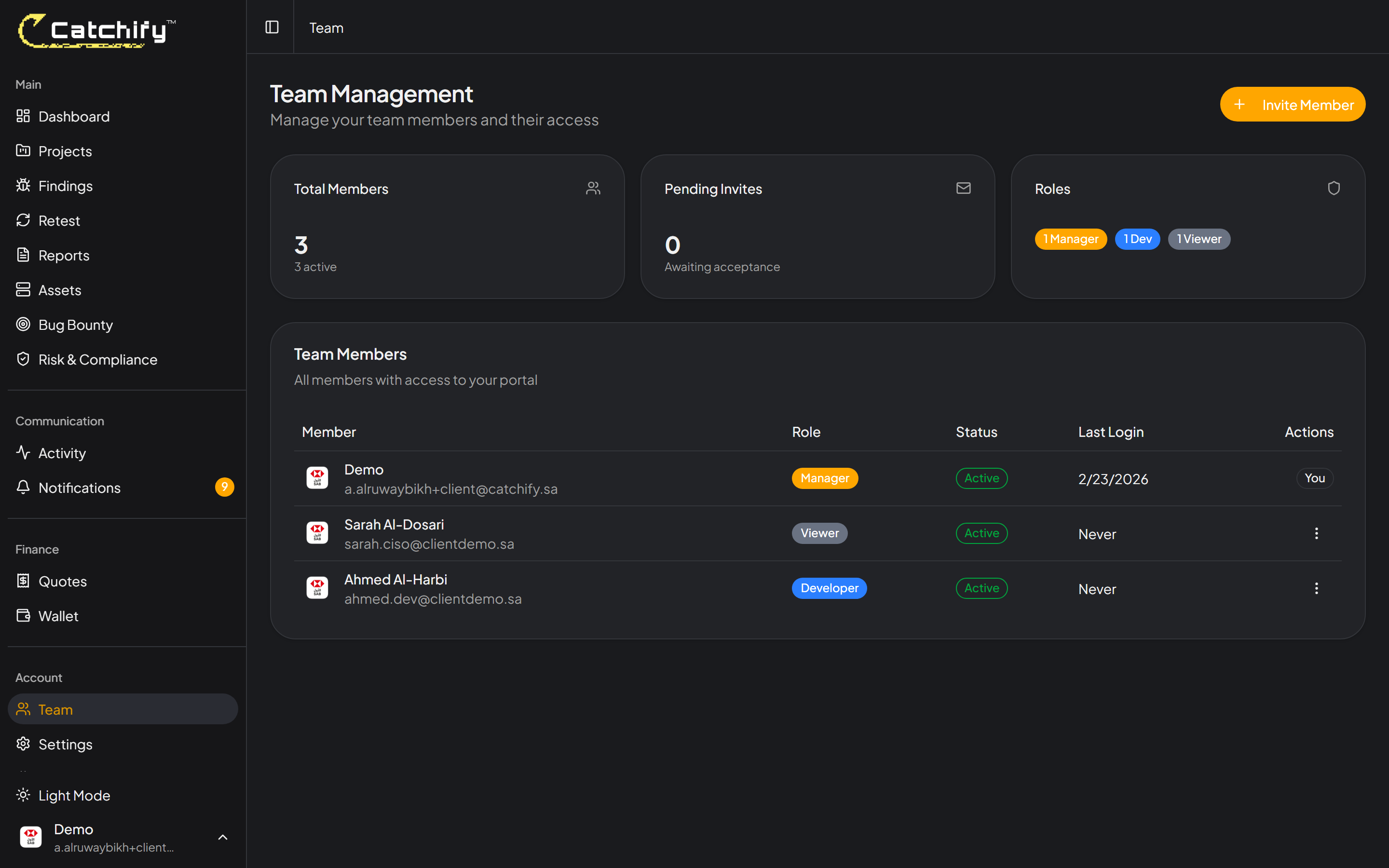
The Team page shows all members of your organization on Catchify:
| Column | Description |
| ---------- | ------------------------------------------------------------------- |
| **Name** | The team member's full name |
| **Email** | Their email address |
| **Role** | Their assigned role (Manager or Member) |
| **Status** | Active, Pending (invitation sent but not yet accepted), or Disabled |
| **Joined** | When they activated their account |
View and manage all your team members from one page
## Editing a Team Member
To change a team member's role or permissions:
1. Find the member on the Team page
2. Click the **Edit** button next to their name
3. Update their role or specific permissions
4. Click **Save Changes**
Changes take effect immediately -- the team member will see their updated access the next time they load a page or log in.
## Removing a Team Member
If a team member leaves your organization or no longer needs access:
1. Find the member on the Team page
2. Click **Remove** next to their name
3. Confirm the removal
The member will immediately lose access to the portal. Their past activity (comments, status changes, etc.) will remain visible in the system for audit purposes.
{% hint style="warning" %}
Removing a team member is permanent. If they need access again in the future, you will need to send a new invitation.
{% endhint %}
## Resending Invitations
If a team member did not receive their invitation or the link expired:
1. Find the member on the Team page (they will show a **Pending** status)
2. Click **Resend Invitation**
3. A fresh invitation email will be sent to their address
## Best Practices for Team Setup
* **Invite all stakeholders early** -- Make sure everyone who needs visibility has access before testing begins
* **Assign appropriate roles** -- Give each member only the access they need. See [Roles & Permissions](/catchify-platform-documentation/team-management/roles-and-permissions.md) for guidance.
* **Review your team regularly** -- Periodically check your team list and remove members who no longer need access
* **Enable 2FA for everyone** -- Encourage all team members to set up two-factor authentication for an extra layer of security
{% hint style="success" %}
There is no limit to the number of team members you can add to your Catchify account. Invite everyone who needs to be part of the security conversation.
{% endhint %}
---
# Agent Instructions
This documentation is published with GitBook. GitBook is the documentation platform designed so that both humans and AI agents can read, navigate, and reason over technical content effectively. Learn more at gitbook.com.
## Querying This Documentation
If you need additional information that is not directly available in this page, you can query the documentation dynamically by asking a question.
Perform an HTTP GET request on the current page URL with the `ask` query parameter, and the optional `goal` query parameter:
```
GET https://docs.catchify.sa/catchify-platform-documentation/team-management/inviting-members.md?ask=&goal=
```
`ask` is the immediate question: it should be specific, self-contained, and written in natural language.
`goal` is optional and describes the broader end goal you are ultimately trying to accomplish on behalf of the user. GitBook uses it to tailor the answer towards what is most useful for that goal.
The response will contain a direct answer to the question and relevant excerpts and sources from the documentation.
Use this mechanism when the answer is not explicitly present in the current page, you need clarification or additional context, or you want to retrieve related documentation sections.