> For the complete documentation index, see [llms.txt](https://docs.catchify.sa/llms.txt). Markdown versions of documentation pages are available by appending `.md` to page URLs; this page is available as [Markdown](https://docs.catchify.sa/catchify-platform-documentation/team-management/roles-and-permissions.md).
# Roles & Permissions
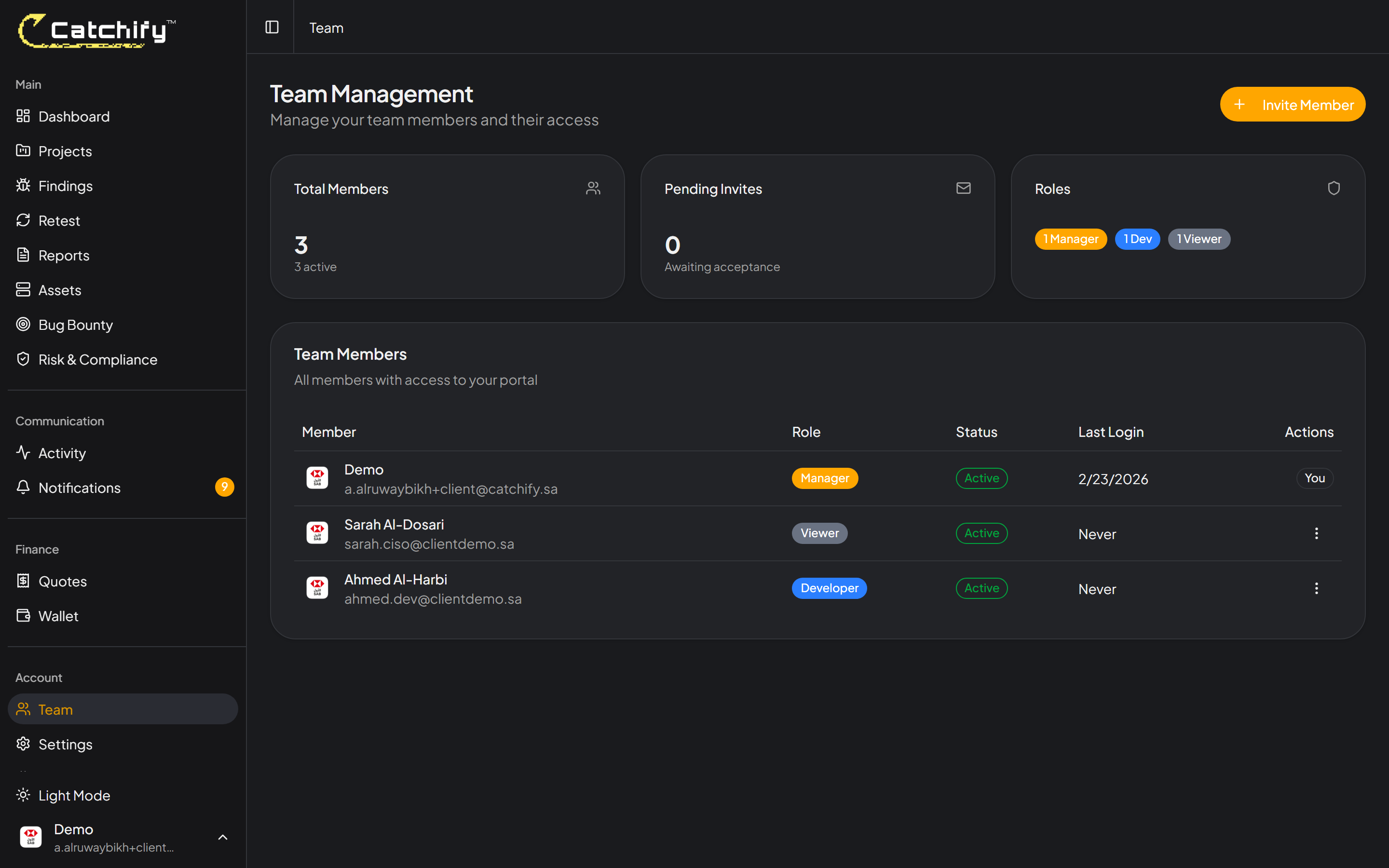
Catchify uses a role-based access system to ensure each team member sees and does only what they need to. This keeps your security data organized and prevents accidental changes by team members who do not need full access.
## Available Roles
There are two main roles in Catchify:
### Manager
Managers have full access to everything in the portal. This role is designed for security leaders, CISOs, and team leads who need complete visibility and control.
**Managers can:**
* View all projects, findings, and reports
* Manage bug bounty programs
* Approve quotes and view invoices
* Invite and manage team members
* Configure integrations
* Request retests
* Access the wallet and manage payments
### Member
Members have customizable access based on the specific permissions you assign. This role is ideal for developers, project managers, compliance staff, and other team members who need access to specific parts of the portal.
## Permission Details
When assigning the Member role, you can enable or disable the following permissions:
| Permission | What It Allows |
| ----------------------- | ---------------------------------------------------------- |
| **View Findings** | See security findings across projects |
| **Add Comments** | Add comments to findings and reports |
| **View Invoices** | Access invoice history and download PDFs |
| **Manage Team** | Invite, edit, and remove team members |
| **Manage Integrations** | Set up and configure Slack, Jira, and webhook integrations |
| **Request Retest** | Submit retest requests after fixes are applied |
| **View Assets** | See the list of assets and scope information for projects |
| **Upload Files** | Attach files and documents to findings and projects |
| **View Quotes** | Access quotes and their details |
Select exactly which permissions each team member needs
{% hint style="info" %}
Only Managers can change roles and permissions for other team members. If you need your permissions updated, ask a Manager on your team.
{% endhint %}
## Recommended Setups
Here are some common permission configurations for different roles in your organization:
### CISO / Security Director
**Role:** Manager
Full access to the portal. CISOs and security directors typically need to see everything, approve quotes, manage the team, and oversee the entire security testing program.
### Security Engineer / Analyst
**Role:** Member
| Permission | Enabled |
| ------------------- | ------- |
| View Findings | Yes |
| Add Comments | Yes |
| Request Retest | Yes |
| View Assets | Yes |
| Upload Files | Yes |
| View Invoices | No |
| Manage Team | No |
| Manage Integrations | No |
| View Quotes | No |
Security engineers need to work directly with findings -- reviewing them, adding context, and requesting retests after fixes.
### Developer / Engineering Lead
**Role:** Member
| Permission | Enabled |
| ------------------- | ------- |
| View Findings | Yes |
| Add Comments | Yes |
| Request Retest | Yes |
| View Assets | Yes |
| Upload Files | Yes |
| View Invoices | No |
| Manage Team | No |
| Manage Integrations | No |
| View Quotes | No |
Developers need to see findings and their reproduction steps so they can implement fixes. They should also be able to request retests.
### Project Manager
**Role:** Member
| Permission | Enabled |
| ------------------- | ------- |
| View Findings | Yes |
| Add Comments | Yes |
| View Invoices | Yes |
| View Assets | Yes |
| View Quotes | Yes |
| Request Retest | No |
| Manage Team | No |
| Manage Integrations | No |
| Upload Files | No |
Project managers need visibility into findings for planning and tracking, along with access to quotes and invoices for budget management.
### Compliance / Audit
**Role:** Member
| Permission | Enabled |
| ------------------- | ------- |
| View Findings | Yes |
| View Invoices | Yes |
| View Assets | Yes |
| View Quotes | Yes |
| Add Comments | No |
| Request Retest | No |
| Manage Team | No |
| Manage Integrations | No |
| Upload Files | No |
Compliance team members typically need read-only access to findings, invoices, and reports for audit and regulatory purposes.
Assign roles and fine-tune permissions for each team member
## Changing Roles and Permissions
To update a team member's role or permissions:
1. Go to the **Team** page
2. Click **Edit** next to the team member
3. Change their role or adjust individual permissions
4. Click **Save Changes**
Changes take effect immediately.
{% hint style="warning" %}
Be careful when granting the Manage Team permission. Team members with this permission can invite new members and change permissions for others.
{% endhint %}
## Best Practices
* **Follow the principle of least privilege** -- Give each team member only the permissions they need for their job
* **Review permissions quarterly** -- As roles change within your organization, update portal permissions accordingly
* **Have at least two Managers** -- Ensure you have a backup Manager in case one is unavailable
* **Document your setup** -- Keep an internal record of who has what access and why
{% hint style="success" %}
A well-organized team setup with appropriate permissions ensures security data is accessible to those who need it while staying protected from unauthorized access.
{% endhint %}
---
# Agent Instructions
This documentation is published with GitBook. GitBook is the documentation platform designed so that both humans and AI agents can read, navigate, and reason over technical content effectively. Learn more at gitbook.com.
## Querying This Documentation
If you need additional information that is not directly available in this page, you can query the documentation dynamically by asking a question.
Perform an HTTP GET request on the current page URL with the `ask` query parameter, and the optional `goal` query parameter:
```
GET https://docs.catchify.sa/catchify-platform-documentation/team-management/roles-and-permissions.md?ask=&goal=
```
`ask` is the immediate question: it should be specific, self-contained, and written in natural language.
`goal` is optional and describes the broader end goal you are ultimately trying to accomplish on behalf of the user. GitBook uses it to tailor the answer towards what is most useful for that goal.
The response will contain a direct answer to the question and relevant excerpts and sources from the documentation.
Use this mechanism when the answer is not explicitly present in the current page, you need clarification or additional context, or you want to retrieve related documentation sections.