# Dashboard Overview

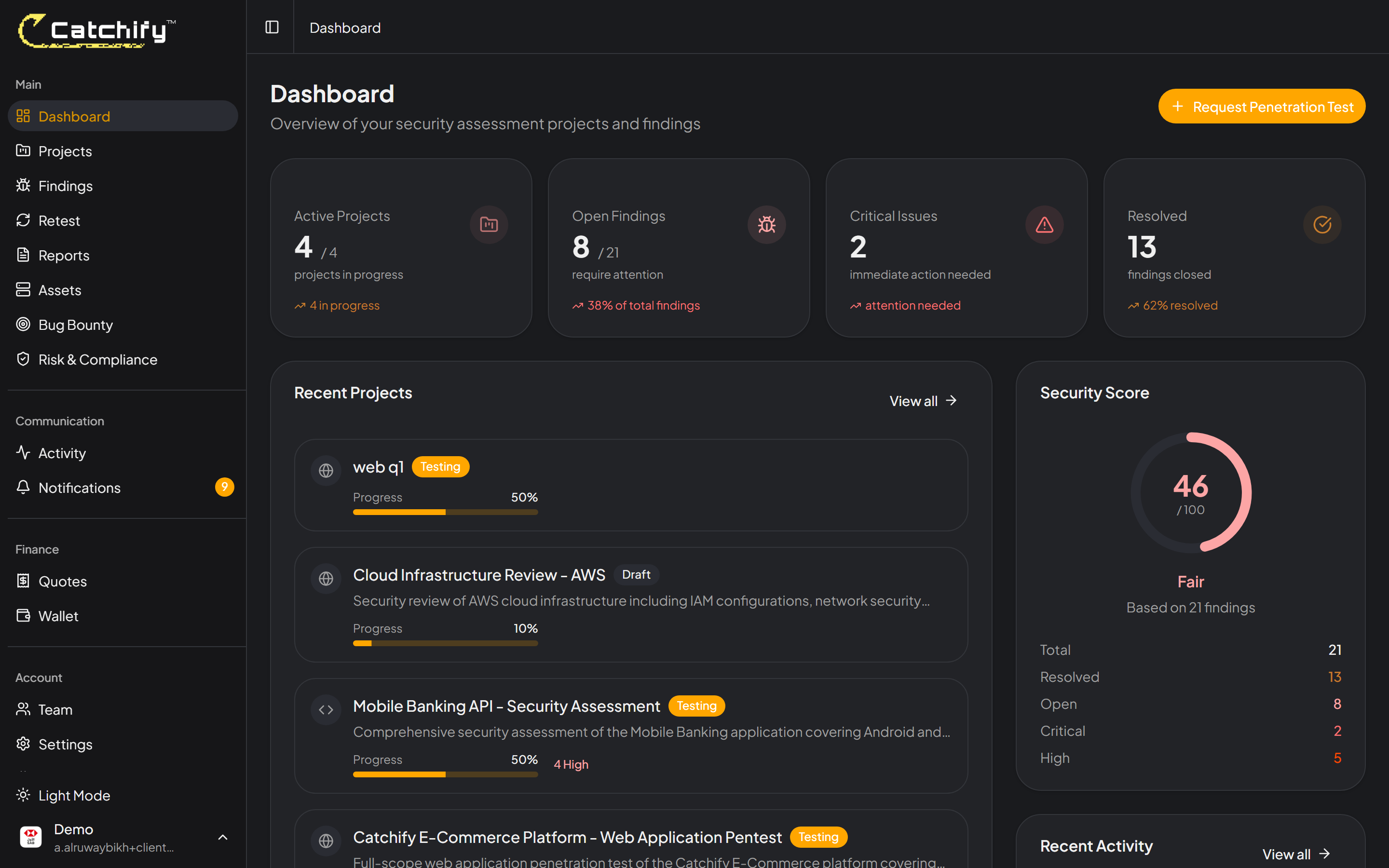
Your dashboard is the first thing you see when you log in to Catchify. It gives you a real-time snapshot of your organization's security posture -- how many vulnerabilities have been found, what their severity is, and what needs your attention right now.

## What You Will See

The dashboard is organized into several sections, each designed to give you quick insight into your security testing program.

<figure><img src="https://1934022057-files.gitbook.io/~/files/v0/b/gitbook-x-prod.appspot.com/o/spaces%2FSEbSDqwQ0dOF3yycuHLw%2Fuploads%2Fgit-blob-a0d9501b6fa06ca757e057197294b7f1587eb04c%2Fdashboard-overview.png?alt=media" alt="Dashboard overview showing security metrics and charts"><figcaption><p>Your dashboard at a glance -- key metrics, severity breakdown, and recent activity</p></figcaption></figure>

### Summary Cards

At the top of the dashboard, you will find summary cards that show your most important numbers:

| Card                  | What It Means                                                                                 |
| --------------------- | --------------------------------------------------------------------------------------------- |
| **Total Findings**    | The total number of security vulnerabilities discovered across all your projects and programs |
| **Open Findings**     | Findings that have not been resolved yet and still need attention                             |
| **Critical Findings** | The most severe vulnerabilities that require immediate action                                 |
| **Closed Findings**   | Findings that have been fixed and verified by the Catchify team                               |

{% hint style="warning" %}
If you see any critical findings on your dashboard, we recommend addressing them as soon as possible. Critical vulnerabilities represent the highest level of risk to your organization.
{% endhint %}

### Severity Distribution Chart

Below the summary cards, you will see a chart that breaks down your findings by severity level. This visual helps you understand the overall risk profile at a glance:

* **Critical** -- shown in red
* **High** -- shown in orange
* **Medium** -- shown in yellow
* **Low** -- shown in blue
* **Informational** -- shown in gray

<figure><img src="https://1934022057-files.gitbook.io/~/files/v0/b/gitbook-x-prod.appspot.com/o/spaces%2FSEbSDqwQ0dOF3yycuHLw%2Fuploads%2Fgit-blob-a0d9501b6fa06ca757e057197294b7f1587eb04c%2Fdashboard-overview.png?alt=media" alt="Severity distribution chart showing findings broken down by severity level"><figcaption><p>Your findings broken down by severity -- aim to keep the critical and high numbers low</p></figcaption></figure>

### Active Projects and Programs

The dashboard also shows your currently active engagements:

* **Active Pentest Projects** -- Penetration tests that are currently in progress, along with their status and timeline
* **Bug Bounty Programs** -- Your active bug bounty programs with recent submission counts

### Recent Activity

At the bottom of your dashboard, you will find a feed of the latest activity across your account. This includes new findings, status changes, comments from the Catchify team, and report submissions.

<figure><img src="https://1934022057-files.gitbook.io/~/files/v0/b/gitbook-x-prod.appspot.com/o/spaces%2FSEbSDqwQ0dOF3yycuHLw%2Fuploads%2Fgit-blob-a0d9501b6fa06ca757e057197294b7f1587eb04c%2Fdashboard-overview.png?alt=media" alt="Recent activity feed showing latest findings and updates"><figcaption><p>Stay up to date with the latest activity across your projects</p></figcaption></figure>

## Navigating from the Dashboard

Your dashboard is a starting point. Click on any metric card, project name, or activity item to dive deeper:

* Click a **summary card** to view the filtered list of findings
* Click a **project name** to see its full details
* Click an **activity item** to go directly to the relevant finding or report

## Refreshing Your Data

The dashboard updates automatically when you load the page. If you have been on the page for a while and want to see the latest data, simply refresh your browser.

{% hint style="info" %}
The numbers on your dashboard reflect all projects and programs your account has access to. If you manage multiple teams or business units, you will see a combined view. Use the filters on individual pages to narrow down by project.
{% endhint %}
